
When you send an email from your Outlook account, the AutoComplete list function (also known as suggested recipients or nickname cache) creates a list of people you have previously emailed. In some cases, if you have emailed someone who has left the University and then returned, the cached information may no longer work even if their email address remains the same.
If you receive a bounce‑back message saying that your email was undeliverable even though the AutoComplete list entry contains the correct email address, you can clear your AutoComplete cache in the following ways:
- Remove AutoComplete list entries one at a time
- Clear your entire AutoComplete list
- Turn off the AutoComplete list function
Note:
|
Remove AutoComplete list entries one at a time
- In Outlook, click the New Email button.
- In the new message window, in the To field, type the first few characters of the AutoComplete entry that you want to remove to have it appear in the list of suggestions.
- Hover your mouse over the entry to highlight it but do not select it, and then click X to remove the entry from the list.
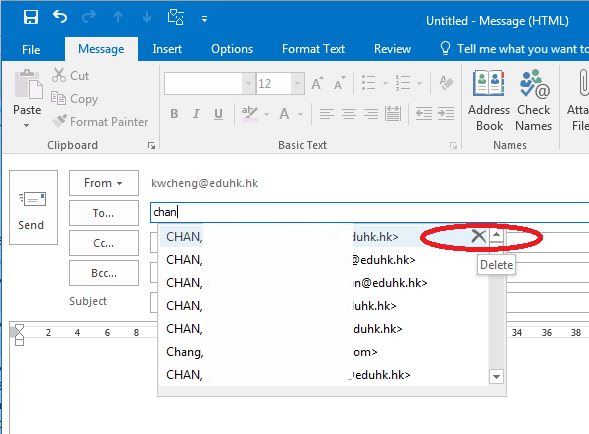
NOTE: Clicking X will remove the entry from the list and prevent it from appearing in your cache, but it may still appear in other areas of your Outlook, such as search boxes. If you send a new email to the same address, Outlook will add the entry back to the list.
Clear your entire AutoComplete list (For Classic Outlook)
- Click File > Options on the left‑hand panel.
- On the Outlook Options menu, click Mail on the left‑hand panel.
- In the Send messages group, click Empty Auto‑Complete List.
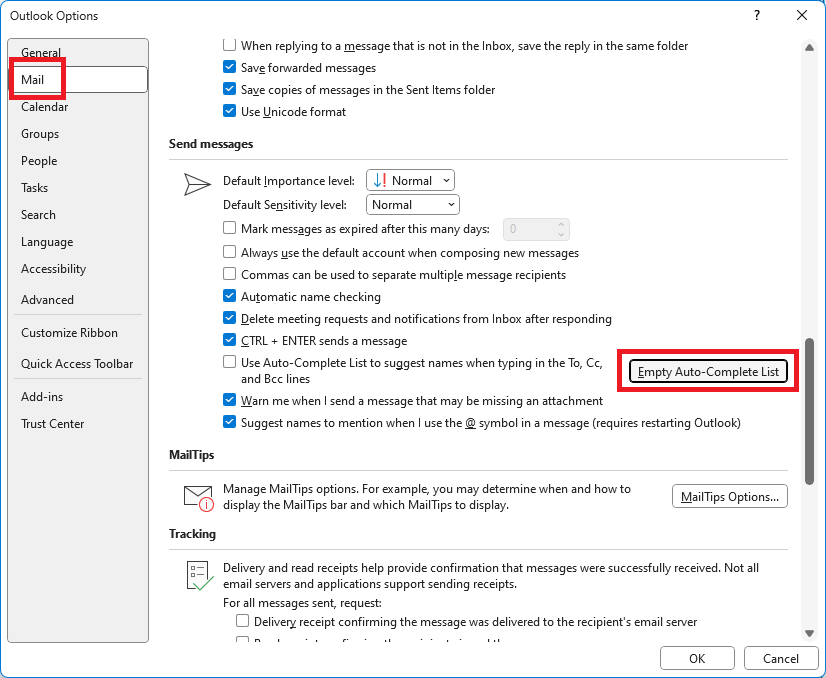
- When prompt for confirmation, click Yes, and then click OK.
Turn off the AutoComplete list function (For Classic Outlook)
- Click File > Options on the left‑hand panel.
- On the Outlook Options menu, click Mail on the left‑hand panel.
- In the Send messages group, clear the Use Auto-Complete List to suggest names when typing in the To, Cc, and Bcc lines check box, and then click OK.
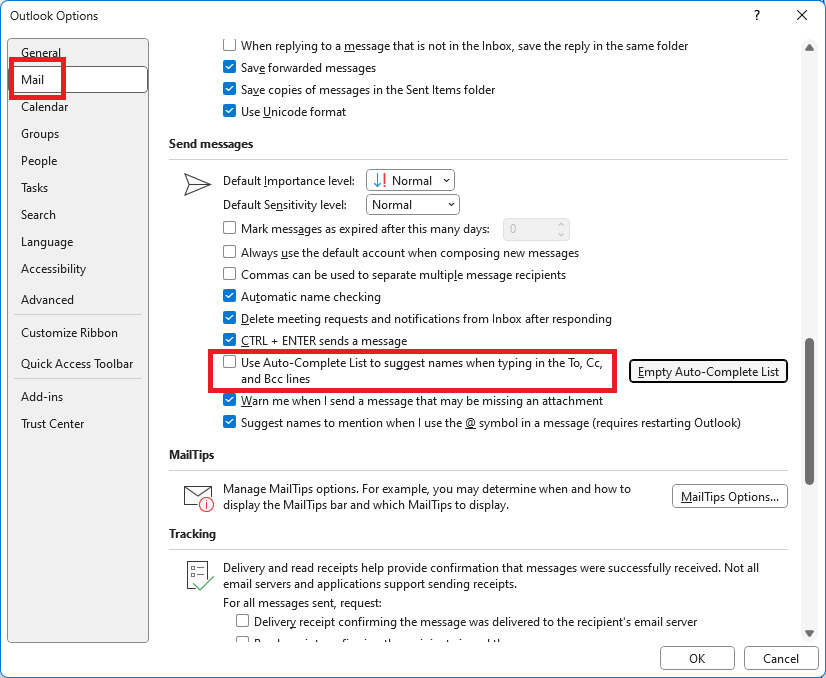
- When prompt for confirmation, click Yes, and then click OK.
For more information, please visit:
- https://learn.microsoft.com/en-us/microsoft-365-apps/outlook/contacts/outlook-autocomplete-list.
- Remove suggested name or email address from the Auto-Complete List in Outlook Web App
Author

kwcheng