
To power on your office computer remotely, you have to enable the Wake-On-LAN on you office computer first. The set-up varies depending on computer brands. Please follow the instructions according to the one you are using below.
BIOS settings (For DELL models only. BIOS settings are not required for HP models.):
- Power on your computer and press “F2” to enter BIOS settings.
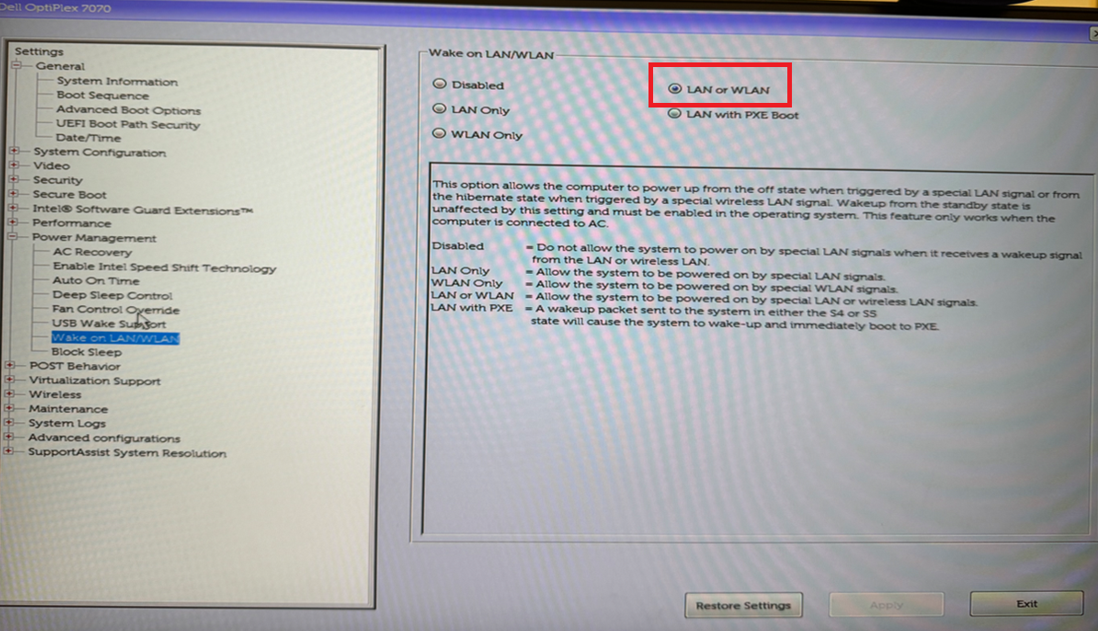
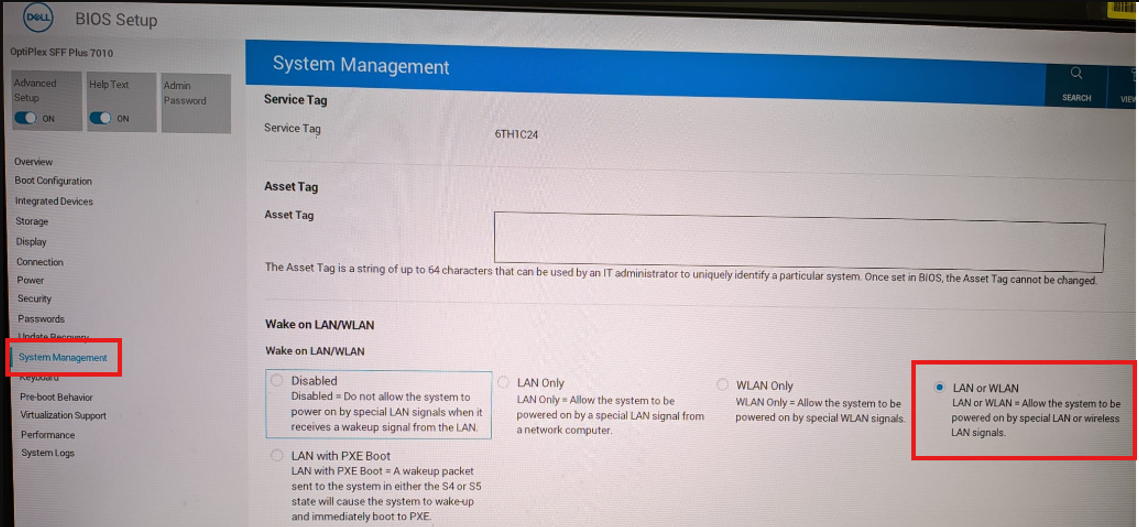
- Select “LAN or WLAN” in the “Wake on LAN/WLAN” section under “Power Management” or “System Management”.
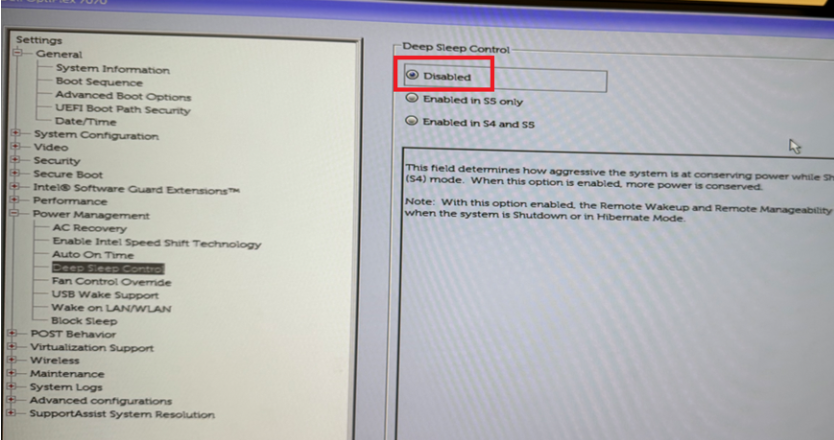
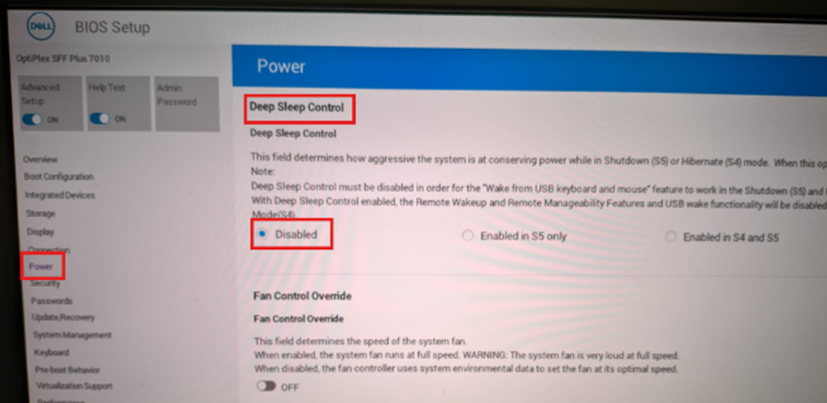
- Disabled “Deep Sleep Control” under “Power Management” or “Power”.
Network & internet settings (For DELL models):
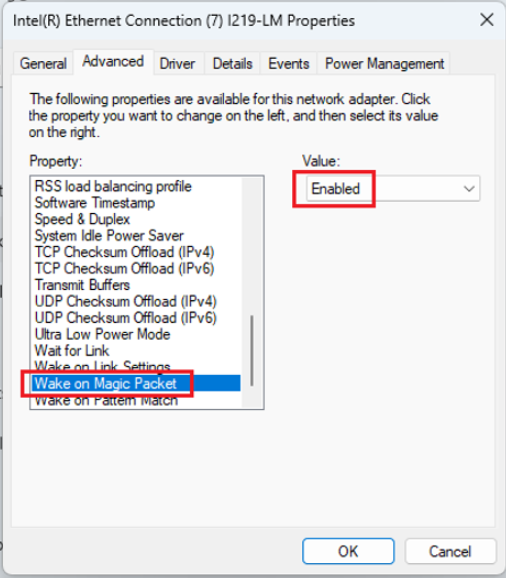
- Enabled “Wake on Magic Packet” under the “Advanced” tab.
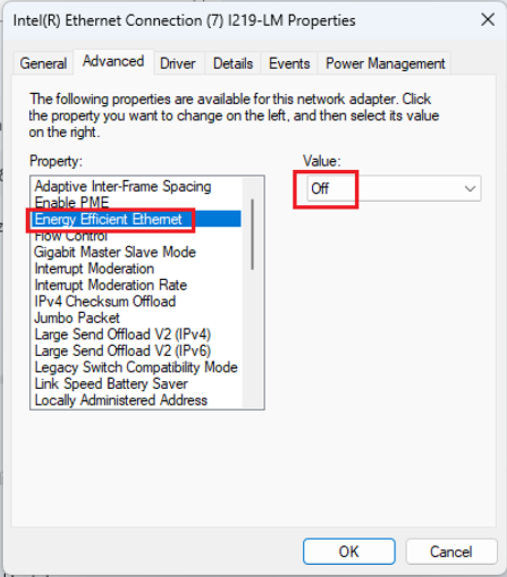
- Turn off the “Energy Efficient Ethernet” under the “Advanced” tab.
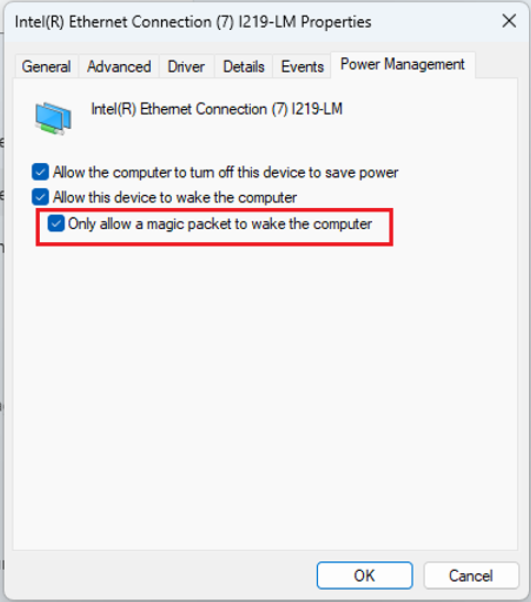
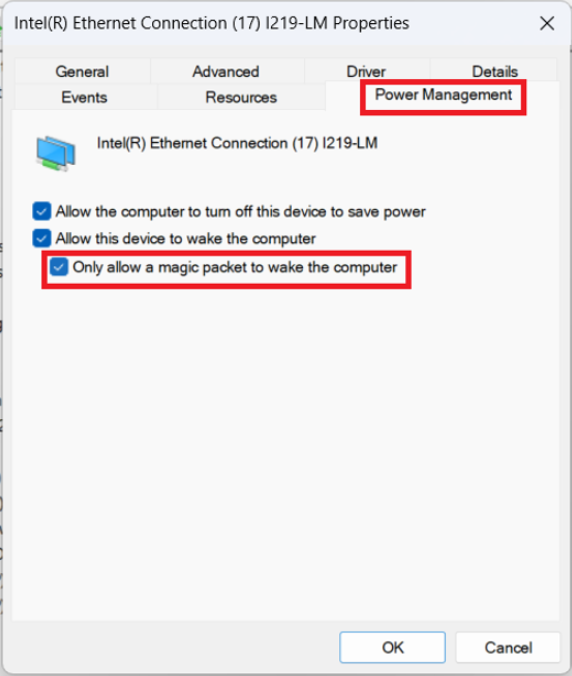
- Check the box “Only allow a magic packet to wake the computer” under the “Power Management” tab.
Network and internet settings (For HP models):
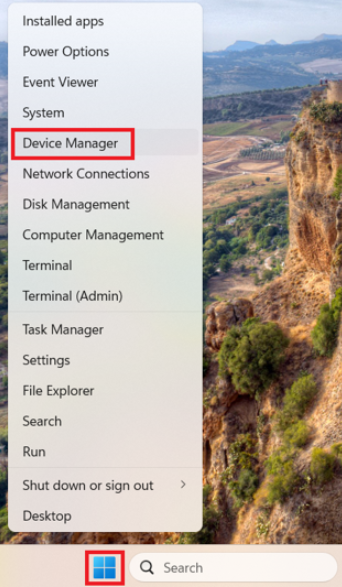
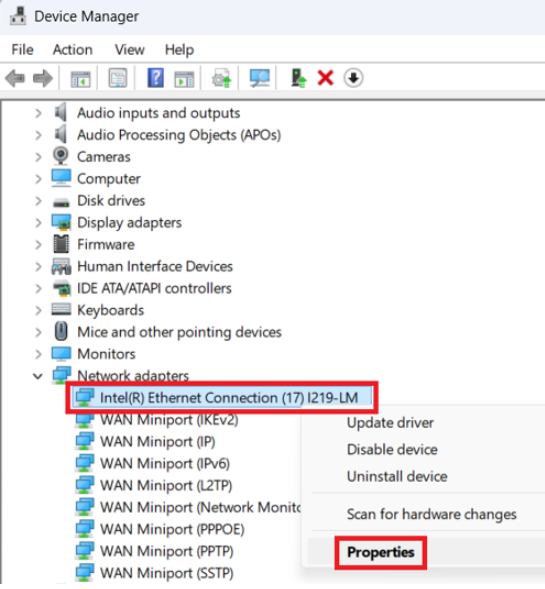
- Right-click the Start button and select “Device Manager”.
- Right-click your Ethernet controller (e.g. Intel(R) Ethernet Connection (17) 1219-LM) under “Network adapters” and select “Properties”.
- Check the box “Only allow a magic packet to wake the computer” under the “Power Management” tab.
Author

fhing